
A few years ago, when LiYanan took a two-and-a-half-hour subway ride to show up at the foot of my hotel, looking at this fresh-faced boy standing before me, I found it hard to connect him with those mature technical solutions. But facts proved that “talent truly knows no age.”
As the developer of MarkdownView and RichText, he has made significant contributions to the SwiftUI community. MarkdownView solved the problem of SwiftUI’s lack of complete Markdown support, and thanks to its outstanding customization capabilities, it has been adopted by heavyweight products like X (Grok) and Hugging Face Chat. Meanwhile, RichText filled the gap in precise mixed text and graphics layout in SwiftUI, significantly improving the interaction experience of text selection on iOS.
If you are currently struggling with text layout limitations in your development, these two libraries might be the answer you are looking for. I invited LiYanan to write this article to share the journey behind his development and the technical challenges he overcame.
Some of the technical details in this article may be quite “hardcore,” but this is exactly the kind of information that is scarce on the internet today. It is also my original intention in inviting him to deeply review the project’s history through this article—to leave behind some truly “different” content for himself and for the community.
Preface
Going back to July 2022, having just finished the College Entrance Examination (Gaokao) and feeling bored at home, I wanted to build a note-taking app. I fantasized about using my own app on a computer or iPad to take notes during university classes.
My idea at the time was: a mix of Markdown and PencilKit. I hoped my app could support both forms simultaneously.
The PencilKit mode is relatively fixed; you basically just call the API provided by the system.
Markdown, however, required a rendering component capable of real-time previews. At that time, SwiftUI.Text already supported some Markdown syntax, including:
- Bold, Italic, Strikethrough
- Links
- Monospaced characters / Inline code blocks
For me, I wanted to support full Markdown rendering, including but not limited to:
- Asynchronous image loading
- Tables
- Blockquotes
- Independent code blocks
At the same time, I also hoped for:
- Customizable styling
- Support for text selection to facilitate copying and pasting
I looked at several solutions on GitHub, but none seemed quite satisfactory.
As luck would have it, Apple released a package called swift-markdown that year, so I started tinkering with MarkdownView.
Mixed Layout of Text and Views
First, let’s introduce the basic working principle of MarkdownView:
- MarkdownView uses swift-markdown to parse the Markdown node tree.
- It recursively generates a corresponding small View for each node.
- Finally, it integrates them to form the final presented content.
Because every node results in a View, how to mix text and images became a major issue. If I brute-forced it by stacking them in a VStack, it would look terrible.
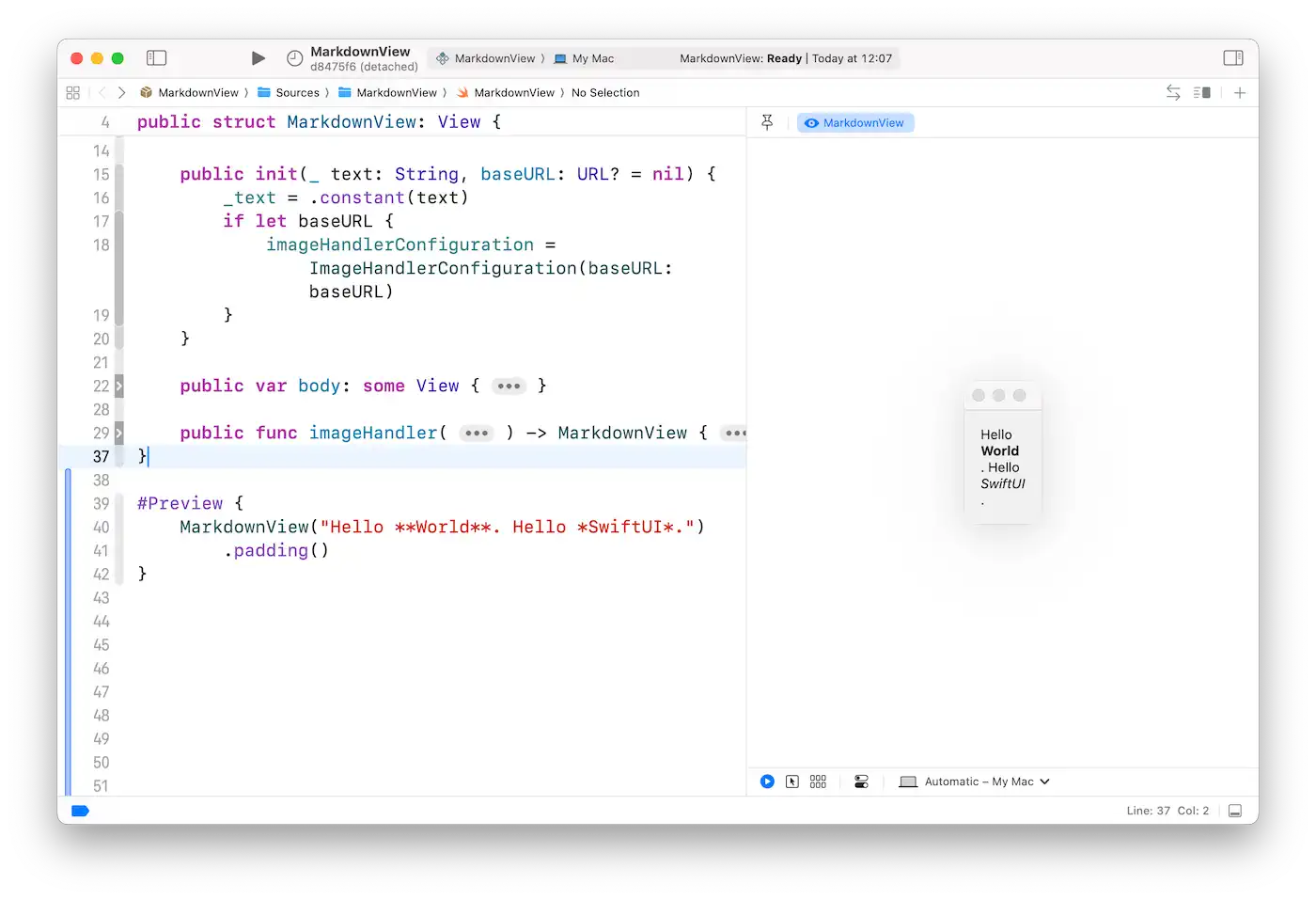
Fortunately, the Layout Protocol appeared, allowing for further customization of internal layout logic. I immediately wrote a Flow Layout so that views could be arranged line by line.
My idea at this point was: split the content into the smallest possible chunks and then piece them together using FlowLayout. I tried several schemes:
- Splitting by character, but this is obviously terrible in Western language contexts.
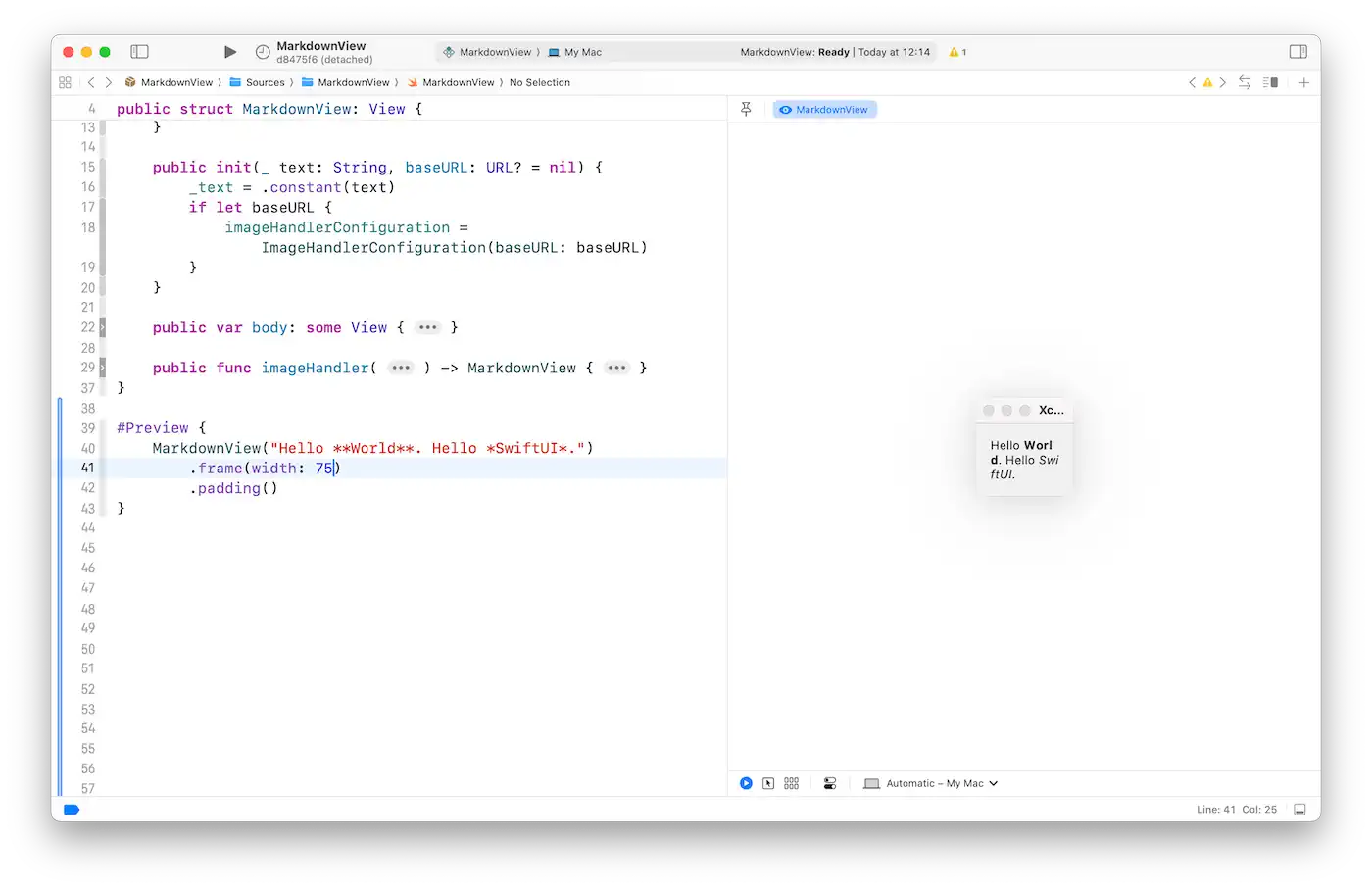
- Using the Natural Language Framework to split by word, which solved the layout issue but had terrible performance.
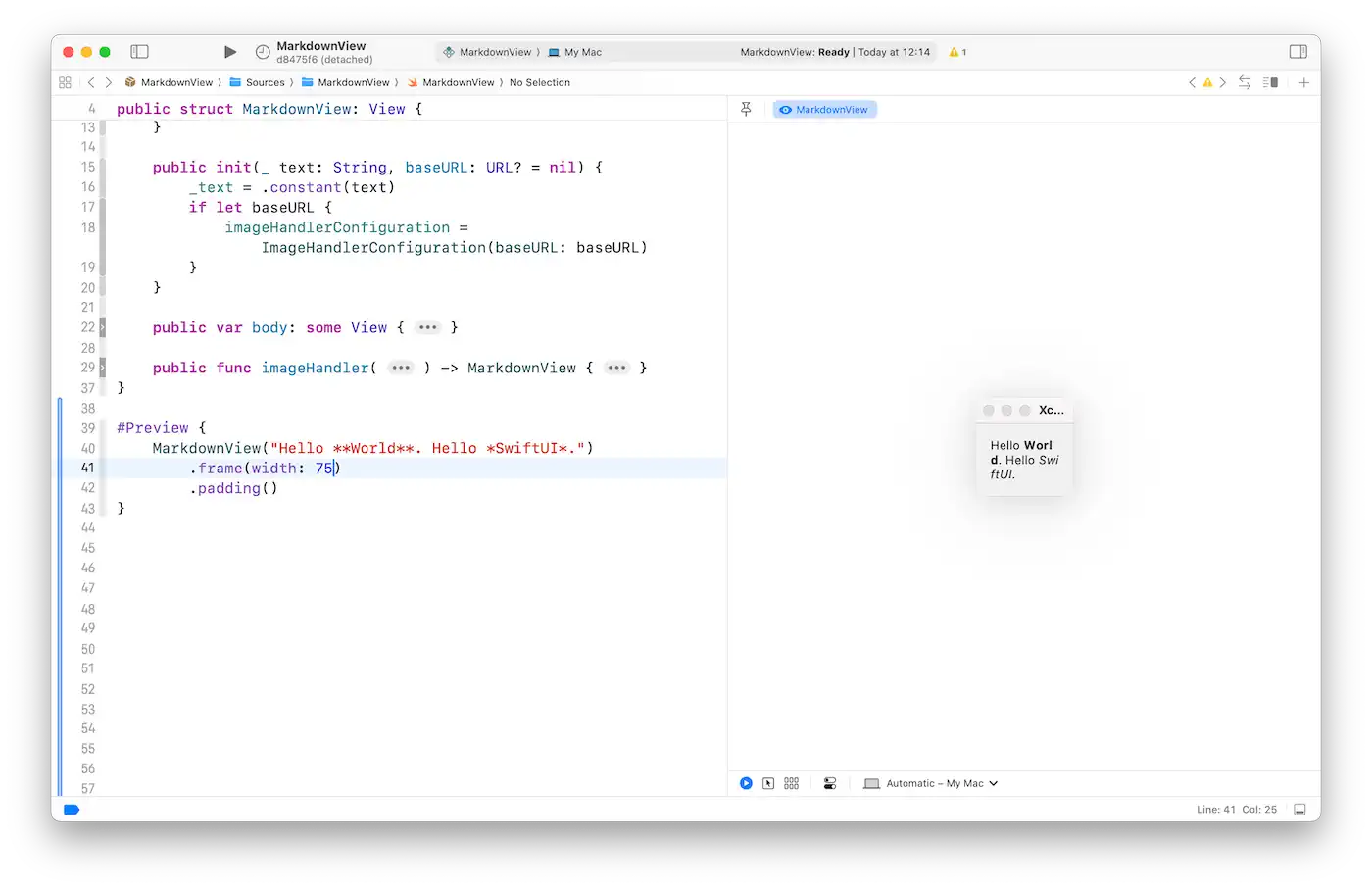
Later, I learned from Fatbobman’s blog that SwiftUI.Text can be concatenated. This led to the current solution:
- Tag every View.
- If adjacent views are both text, merge them.
- If not, continue using FlowLayout to arrange them.
I suddenly realize how low efficiency was without the help of AI.
If tools like ChatGPT existed back then, a single search might have revealed all this directly (provided, of course, that Apple had good enough documentation).
At this point, multiple Texts of different formats could blend well, and Text could be arranged well with other Views.
Regarding Text Selection:
- Multiple continuous Texts support continuous selection.
- Paragraphs use
\n, so cross-paragraph selection is possible (but still requires the content before and after to be continuous text). - Because images are loaded asynchronously, they cannot be selected together with text.
- Block content (blockquotes, code blocks, etc.) also cannot be selected together with the preceding or following Text.
Rendering SVG and Math Formulas
One point that distinguishes MarkdownView from other solutions is that it supports SVG and Math formula rendering.
- SVG is implemented by embedding a webpage using WebKit (best compatibility, but slightly higher overhead).
- Each WebView queries the SVG size via JS to ensure the page layout is correct.
- Math formulas are rendered using colinc86/LaTeXSwiftUI.
- Since LaTeX is not standard Markdown content in CommonMark, swift-markdown cannot directly parse math formulas and provide corresponding nodes.
- Before entering swift-markdown parsing, an extra step is needed to parse the math formula parts, which brings additional overhead.
- This feature requires developers to explicitly declare their intent via a View Modifier to enable it.
Style Customization API Design
MarkdownView provides a complete set of UI customization APIs, allowing you to customize the style of almost all Markdown elements.
However, you will find that initializing MarkdownView requires only one parameter (_ content: String): this is the only necessary parameter. All other optional parameters are modified via View Modifiers.
At the beginning of the API design, I was thinking about how to lower the learning curve for developers and improve development efficiency, focusing on the following aspects:
- Which APIs can be reused or express the same intent?
- What are the design patterns of SwiftUI’s APIs?
- How should a View Modifier be named to improve readability and discoverability?
For fonts, colors, tints, etc.:
- Directly extend native APIs:
.font(.largeTitle.width(.expand), for: .h1).foregroundStyle(.red, for: .h1).tint(.yellow, for: .blockQuote)
- Keep the same naming as SwiftUI APIs, while extending the parameter signature based on Markdown semantics.
For block nodes (e.g., tables, lists, quotes, code blocks, etc.):
- Provided corresponding Style Protocols and style view modifiers to implement content style customization.
CodeBlockStyle+.codeBlockStyle(_:)MarkdownTableStyle+.markdownTableStyle- etc.
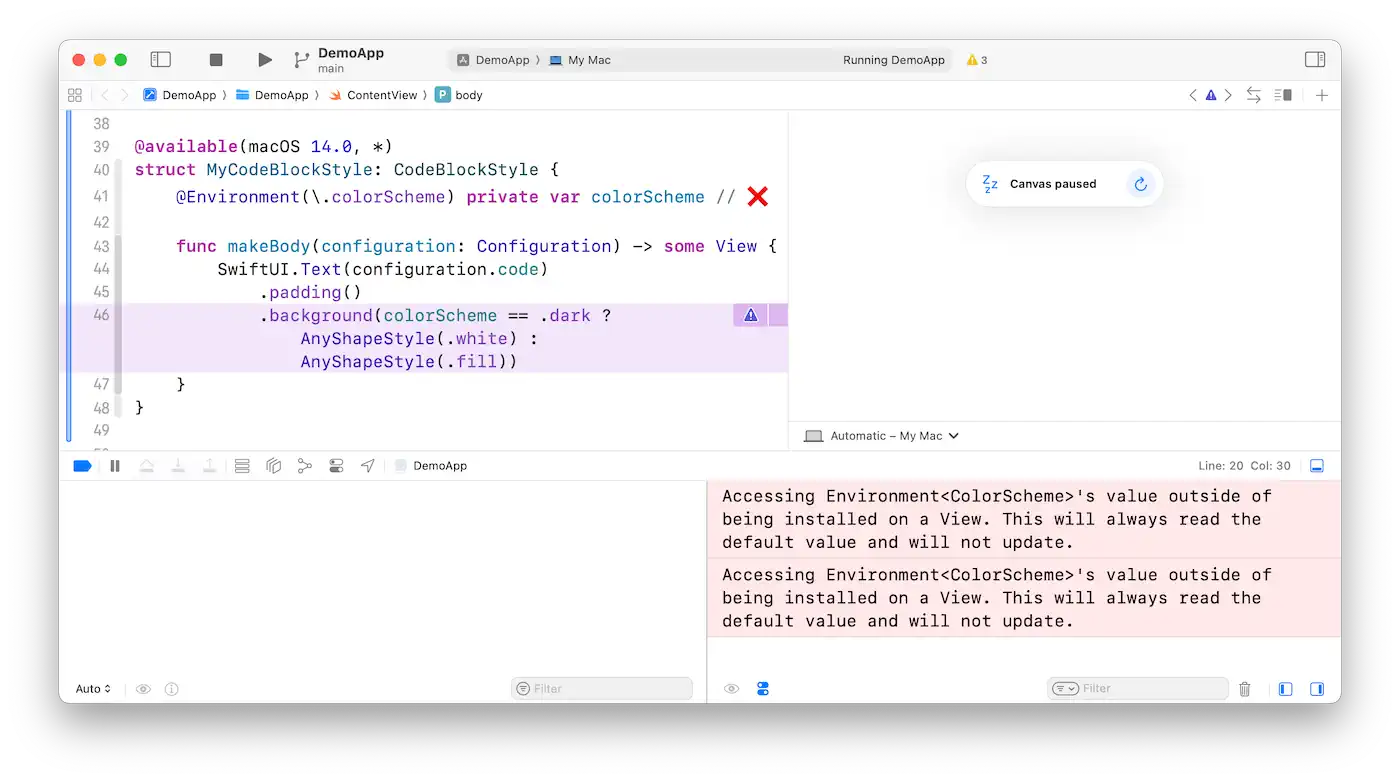
- However, due to various limitations in SwiftUI, Property Wrappers provided by SwiftUI, such as
@Environment, cannot be used directly in custom views within the style. If needed, you can create a View and return it viamakeBody(configuration:).- This involves the internal implementation of
SwiftUI&AttributeGraph. If interested, you can refer to OpenSwiftUI.
- This involves the internal implementation of
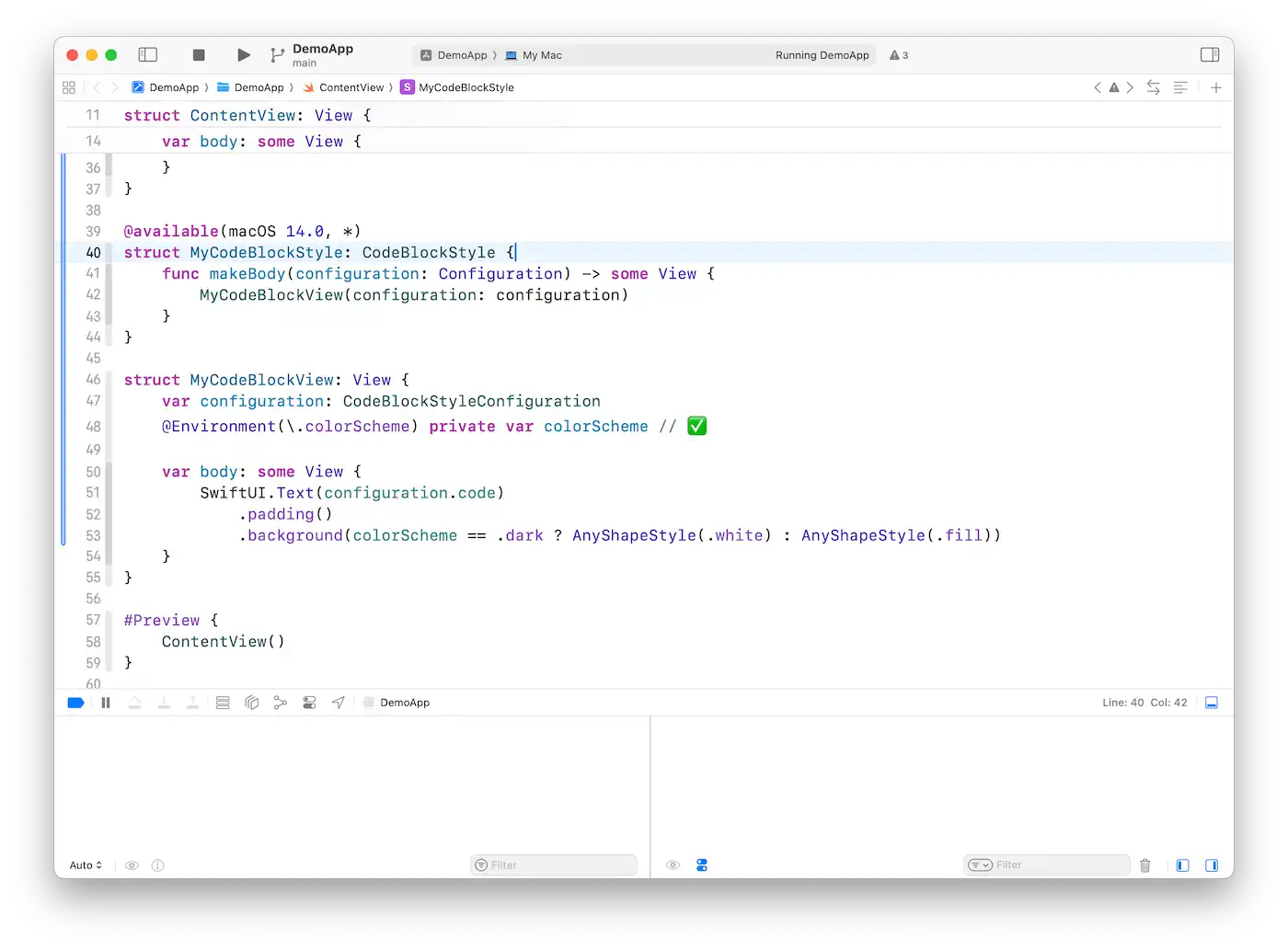
For content requiring deeper customization, additional View Modifiers are needed, for example:
- Background layer and foreground layer (overlay) of cells
.markdownTableCellOverlay(_:).markdownTableRowBackgroundStyle(_:in:)
- List item indentation:
.markdownListIndent(_:)
Almost all APIs use markdown as a prefix to explicitly express the scope. This point references the SwiftUI Accessibility API. The benefit of doing this is: If I don’t know what APIs are available, typing markdown allows me to see available APIs in code completion.
I am simply presenting my viewpoint and thoughts here.
The APIs in the current version of MarkdownView do not completely follow this standard. This is a known issue, and subsequent versions will continue to refine the APIs according to this specification.
To summarize:
- First, try to extend existing APIs to ensure natural semantics.
- Then, try creating new APIs.
- Every API should have a clear scope prefix to express the target object.
- Inject values inward via EnvironmentKey.
- Export values outward via PreferenceKey.
Crashes Caused by PreferenceKey
While writing this article, I received an issue that I really want to share here: Do not mark PreferenceKey with @MainActor.
PreferenceKey does not guarantee that defaultValue is called on the MainActor; calling it there has a probability of triggering a crash.
Crashing Thread:
    0   libdispatch.dylib                   0x000004e80 _dispatch_assert_queue_fail + 116
    1   libdispatch.dylib                   0x0000376b0 dispatch_assert_queue$V2.cold.1 + 136
    2   libdispatch.dylib                   0x000004e08 dispatch_assert_queue + 84
    3   libswift_Concurrency.dylib          0x000004584 _swift_task_checkIsolatedSwift + 32
    4   libswift_Concurrency.dylib          0x0000454a4 swift_task_isCurrentExecutorWithFlagsImpl(swift::SerialExecutorRef, swift::swift_task_is_current_executor_flag) + 356
    5   libswift_Concurrency.dylib          0x0000043a0 _checkExpectedExecutor(_filenameStart:_filenameLength:_filenameIsASCII:_line:_executor:) + 56
    6   ???                                 0x3409917bc _$s12MarkdownView0A34TableCellStyleCollectionPreferenceV7SwiftUI0G3KeyAadEP12defaultValue0L0QzvgZTW
7 SwiftUICore 0x00056484c DynamicPreferenceCombiner.value.getter + 236- This is a very typical crash stack:
DynamicPreferenceCombinerattempts to getdefaultValue.- Then it goes into
_checkExpectedExecutorinternally. - Since my
TableCellStyleCollectionPreferencewas marked with@MainActor, it was inconsistent with expectations.- Though it’s unknown exactly which queue was expected.
- Assertion failed:
_dispatch_assert_queue_fail-> Program crashed.
- The reason for using
@MainActorwas:- The
Valueused was notSendable. - Xcode would report “Static property ‘defaultValue’ is not concurrency-safe”.
- The
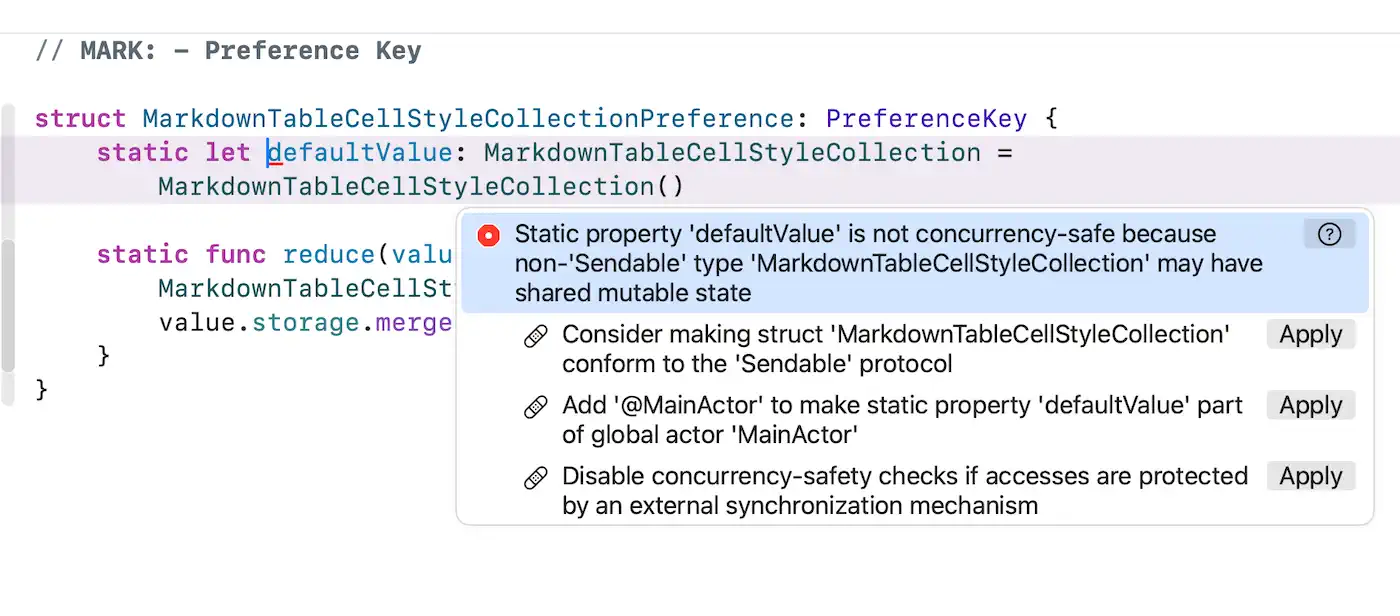
Since @MainActor cannot be used, how to solve it?
- Use a “Lock” and manually make
Valuebecome@unchecked Sendable. - Be very careful with this step. After doing it, try to use multiple AIs to help check if it is truly thread-safe.
I am posting the relevant issues here for reference. If interested in the specific implementation, you can find the corresponding PRs inside:
- https://github.com/LiYanan2004/MarkdownView/issues/102
- https://github.com/LiYanan2004/MarkdownView/issues/127
A Failed Attempt – MarkdownText
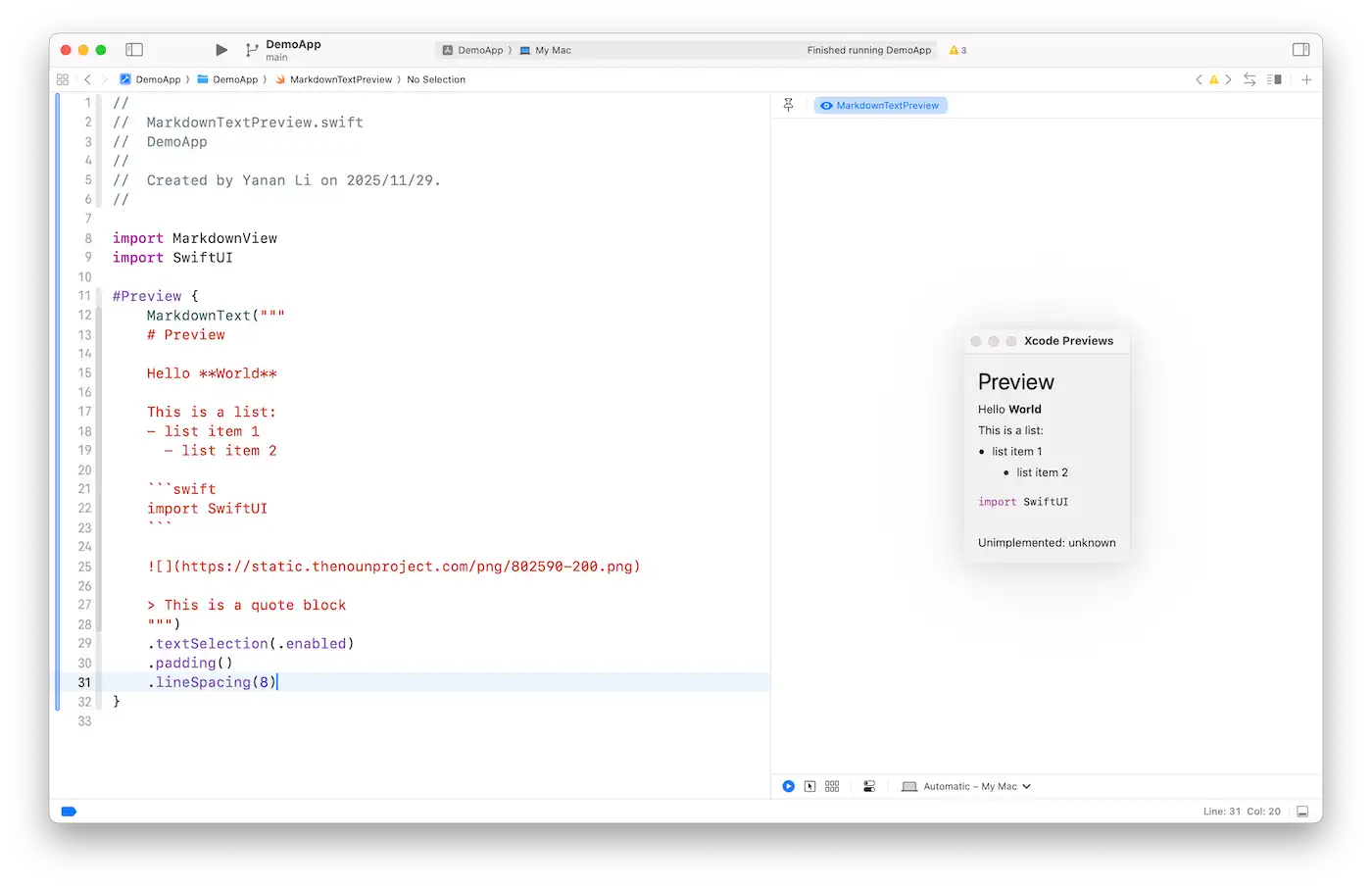
In MarkdownView 2, I kept thinking about how to improve the text selection experience and tried introducing MarkdownText to render all content as Text:
AttributedStringcan theoretically support tables, blockquotes, etc., after reasonable setup.- Code blocks can also become
NSAttributedString. - For content loaded asynchronously like images, placeholders can be used first, followed by updating Text Storage to implement display.
But the drawbacks that followed were also very obvious. Listing a few here:
- Unable to customize the UI of various components.
- Code blocks no longer support copying all code directly.
- Block Directives cannot be rendered in MarkdownText.
To embed custom UI, one can only try using Canvas, because Canvas’s GraphicsContext can resolve Text / Image / View, so maybe a scheme to string them together could be found.
TextRenderer and textSelection Are Mutually Exclusive
It seemed that TextRenderer could meet such requirements:
- Essentially, Text is still Text and can be combined freely.
- Text rendering methods can be customized – meaning styles can be customized.
Although it is still impossible to pass in a custom View to render Block Directives, if the above two points could be achieved, it would be “theoretically” enough for the short term.
However,
Once .textSelection(.enabled) is turned on, all TextRenderers become ineffective.
Looking back at the documentation for TextRenderer:
TextRenderer
A value that can replace the default text view rendering behavior.
SwiftUICore.View.textRenderer(_:)
Returns a new view such that any text views within it will use
rendererto draw themselves.
It makes absolutely no mention of a conflict with textSelection, so I count this as a “pitfall.”
MarkdownText ended in failure, but the exploration did not stop.
True Mixed Layout – RichText
Through MarkdownText, it is not hard to discover that relying solely on Text cannot achieve precise control over content styling; the ideal implementation still requires Views to participate.
So, a new exploration began recently: RichText.
Embedding Arbitrary Views
Although SwiftUI still does not support attachment embedding, NSTextView / UITextView do, and both directly support text selection.
The essence of embedding a view is:
- Size: Let the Text Layout Engine know the size of this view.
- Position: Get the position of this view in the entire Text View after layout.
As for whether to actually display the view inside this Text View, it’s not that important.
Considering that the embedded views are SwiftUI.Views, I used a scheme of Platform Text View + View overlay:
- Platform Text View (aka
NSTextView/UITextView): Overall layout + Text display. - View overlay: Get the position information after Text Layout and display it at the corresponding position.
- The coordinate system of the overlay is consistent with the Platform Text View, so it fits perfectly.
In this way, not only is view embedding implemented, but cross-element selection is also supported as a bonus, perfectly solving the biggest pain point in the current experience of MarkdownView.
I also discovered that SwiftUI’s .textSelection(.enabled) on iOS can only select everything; range selection is only supported on macOS.
With RichText, developers only need to change Text to TextView to support perfect text selection on both iOS and macOS.
Font -> Platform Font Conversion
Since the underlying text view uses NSTextView / UITextView, they cannot correctly recognize SwiftUI.Font.
Fortunately, starting from OS 26 (iOS 16+), there is a new set of APIs that can safely convert SwiftUI.Font to CTFont.
@Environment(\.fontResolutionContext) var fontResolutionContext
@Environment(\.font) var font
let platformFont = (font ?? .body).resolve(in: fontResolutionContext).ctFont as PlatformFont // NSFont or UIFont
However, this set of APIs requires newer OS versions, so I added another set of APIs using NSFont / UIFont as parameters to support older versions.
extension SwiftUI.View {
    /// Sets the default font for the text in this view.
    ///
    /// `SwiftUI.Font.Resolved` is only available on OS 26 and later. Starting with OS 26, `SwiftUI.Font` can be automatically resolved into `PlatformText`.
    ///
    /// However, if you are also targeting older system versions and want to offer a consistent experience, use this view modifier to explicitly specify a platform font.
    ///
    /// ```swift
    /// TextView("TextView")
    ///     .font(UIFont.systemFont(ofSize: 28)) // This would work consistently across OS versions
    /// ```
    @inlinable
    public nonisolated func font(_ font: PlatformFont?) -> some View {
        modifier(_PlatformFontModifier(font: font))
    }
}
The API design here extends SwiftUI’s built-in font view modifier, so it will be displayed together in code completion, helping developers discover this modifier.
There is also a small discovery here:
Font.Contextseems to be used only whenFont.resolveis called; it requires iOS 15+, macOS 12+.- But
Font.Resolvedrequires OS 26+.
Intuitively, these two should have been done together, but this difference in availability made me feel a bit surprised. Maybe there will be a chance to back-deploy it later? But looking at swiftinterface in Xcode 16, I didn’t find the definition of Font.Resolved.
View ID
Now there is another problem: State preservation of embedded views.
Because all views are recreated every time the content changes, views revert to their initial state—essentially a brand-new view lifecycle.
For every passed-in view, it is eventually converted to an InlineTextAttachment, which stores:
- The corresponding View.
- The view’s size and position information.
Every time content changes, all attachments are recreated, which is the cause of state loss.
So, as long as the view is associated with an ID, state preservation can be achieved.
To solve this problem, I first thought of a SwiftUI view modifier called id(_:).
The next question is: How to get a view’s ID directly?
The answer might be:
- Use the
ForEachSubview API. - Use the
_VariadicView_MultiViewRootAPI if compatibility with older system versions is needed.
But these APIs can only get the corresponding ID during body evaluation.
Even if I know this ID already exists and control it via if-else, introducing if-else increases the overall complexity of the view.
The most direct way is to see if I can get the ID directly through the View itself.
Fortunately, OpenSwiftUI has a specific implementation scheme for SwiftUI.View.id(_:).
extension View {
    /// Binds a view's identity to the given proxy value.
    ///
    /// When the proxy value specified by the `id` parameter changes, the
    /// identity of the view — for example, its state — is reset.
    @available(OpenSwiftUI_v1_0, *)
    @inlinable
    nonisolated public func id<ID>(_ id: ID) -> some View where ID: Hashable {
        return IDView(self, id: id)
    }
}

@available(OpenSwiftUI_v1_0, *)
@usableFromInline
@frozen
package struct IDView<Content, ID>: View where Content: View, ID: Hashable {
    @usableFromInline
    var content: Content

    @usableFromInline
    var id: ID

     /* ... */
}
In IDView, there is a property: id – exactly the id we set via the view modifier.
Next, we can use Mirror to search step-by-step for the IDView node and find the id.
private static func descend(
    mirror: Mirror
) -> AnyHashable? {
    let type = mirror.subjectType
    guard type != Never.self else { return nil }

    // Get the module name and the view type hierarchy.
    let typeName = String(reflecting: type)

    if typeName.starts(with: "SwiftUI.TupleView") {
        return nil
    }

    if typeName.starts(with: "SwiftUI.IDView"),
       let id = mirror.descendant("id") as? AnyHashable {
        return id
    }

    for child in mirror.children {
        guard let view = child.value as? (any SwiftUI.View) else { continue }
        if let found = explicit(view) {
            return found
        }
    }

    return nil
}/* id: hw */
VStack {
Text("Hello World")
.id("hw")
}
/* id: nil, VStack wraps a TupleView. */
VStack {
Text("Hello")
.id("hello")
Text("World")
.id("world")
}
/* id: hw */
Text("Hello World")
.id("hw")Using this ID, we can find matching Views in the new and old attachment lists, directly inheriting the previous state, thus avoiding unexpected refreshes.
Equivalent Text Replacement
At this point, the View can be selected, but once the content is copied, the part corresponding to the View disappears directly.
Therefore, a replacement operation needs to be done during copying.
When embedding a view, we can use InlineView to associate it with a corresponding text.
By overriding:
attributedSubstring(forProposedRange:actualRange:)–NSTextViewattributedText(in:)–UITextViewcopy(_:)–UITextView
Such requirements can be achieved.
With that, the mixed layout of rich text is basically figured out.
Recently, I have also been preparing for version 3.0 of MarkdownView, which will integrate RichText and MarkdownView to provide a better text selection experience.
Stay tuned!