
TL;DR: CloudKit databases do not create indexes for fields by default. To browse your data list in the CloudKit Console, you must manually add a Queryable index to the recordName field.
The Problem
Many developers, after integrating CloudKit synchronization with Core Data or SwiftData, encounter a confusing phenomenon:
The app synchronizes perfectly across multiple devices, yet when querying Records in the Apple Developer CloudKit Console, it shows “No Records Found” or a completely blank list.
The Root Cause
This is not a synchronization failure. It is a result of CloudKit’s indexing mechanism:
- On-Demand Indexing: Unlike traditional relational databases, CloudKit does not build indexes for fields by default to optimize performance and storage.
- Query Limitations: Fields without indexes cannot be queried, searched, or sorted.
- Framework Behavior: When Core Data or SwiftData deploys its managed Schema (tables usually prefixed with
CD_) to CloudKit, it does not include the index configurations required for visual browsing by default.
Therefore, while your data physically exists in the cloud, the Console appears empty because it cannot execute a “query all” command without an index.
The Solution
To resolve this, you need to manually add indexes in the CloudKit Dashboard.
1. Key Step: Making Records Visible
To make data appear in the list, you must allow CloudKit to “query” the primary keys of these records.
- Log in to the CloudKit Console and navigate to Indexes.
- Select the corresponding Record Type (usually starting with
CD_). - Locate the system field
recordName. - Click Add Index and select
QUERYABLE. - Save Changes.

Once completed, return to the Records page and click Query. You should now see your data list.
2. Advanced Configuration: Sorting and Searching
If you want to filter or sort by specific fields (such as name or timestamp) in the console, you need to add specific indexes for those fields individually:
- Queryable: Allows for exact match queries.
- Sortable: Allows for sorting results by this field.
- Searchable: Allows for full-text search (only supports
Stringtypes).
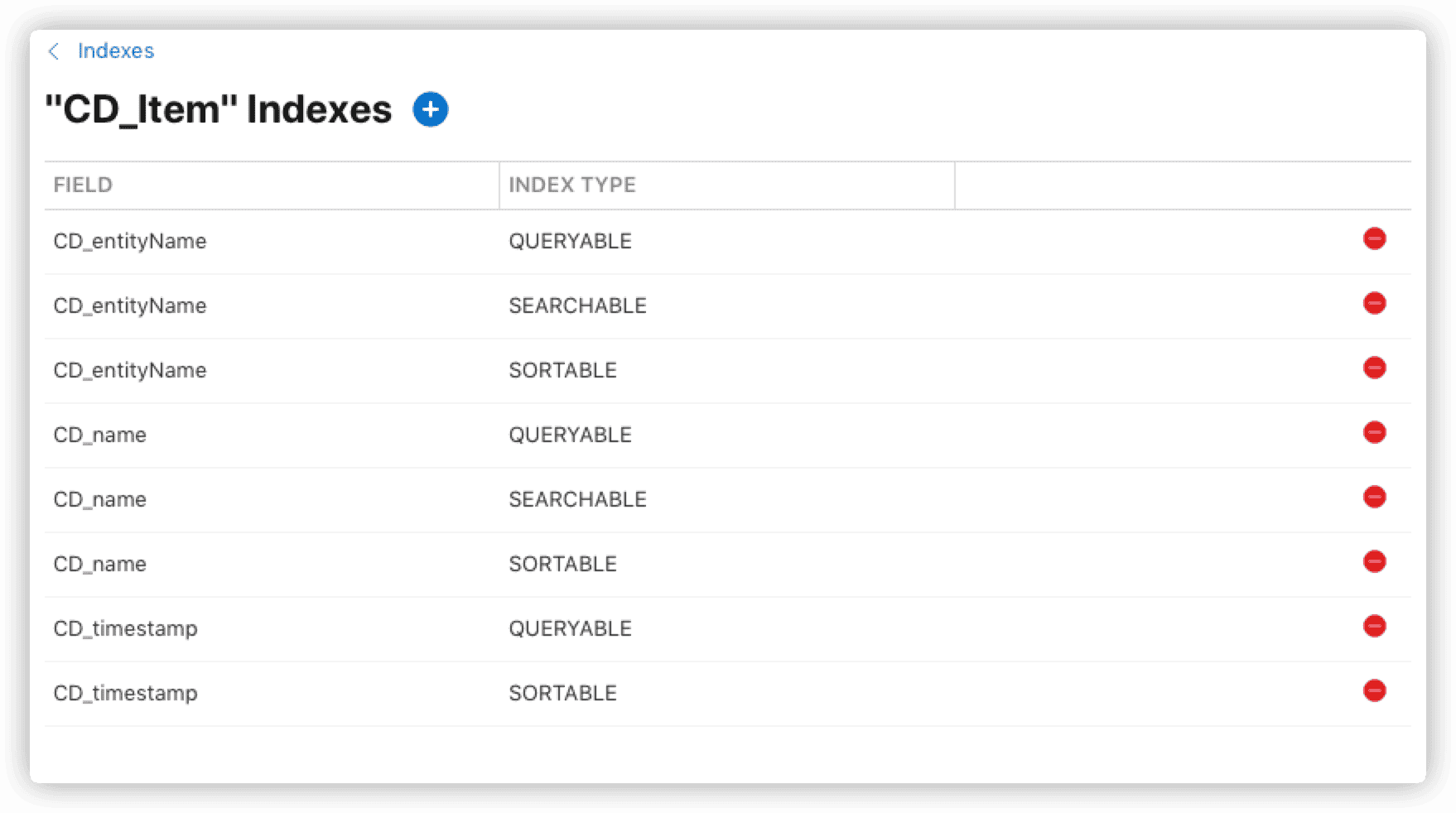
Note: Index configurations are separate. If you want to both query and sort by a field, you must add two separate index entries (QUERYABLE and SORTABLE) for that same field.
